Feature available for : 🔷 Facilitators 🟨 Administrators

Over 120 layouts created by Jean-Claude Figueiras are already available on our platform, but you can also create your own table layouts to make your sessions more immersive. Designing your own tables allows you to choose the ambience of your training sessions and meetings, adopt your brand colors, add your logo... With this tool, you can not only adjust the tone of your activity, but also organize participants efficiently, whether to form groups or encourage interaction.

Open the layout generator
The Layout Generator is part of our Draft.io whiteboard templates and can be accessed from any table.
Click on the blue plus Project new content at the bottom of your screen ➜ select Draft.io Whiteboard then Use a Glowbl Template ➜ choose Layout Generator from the Basic templates .
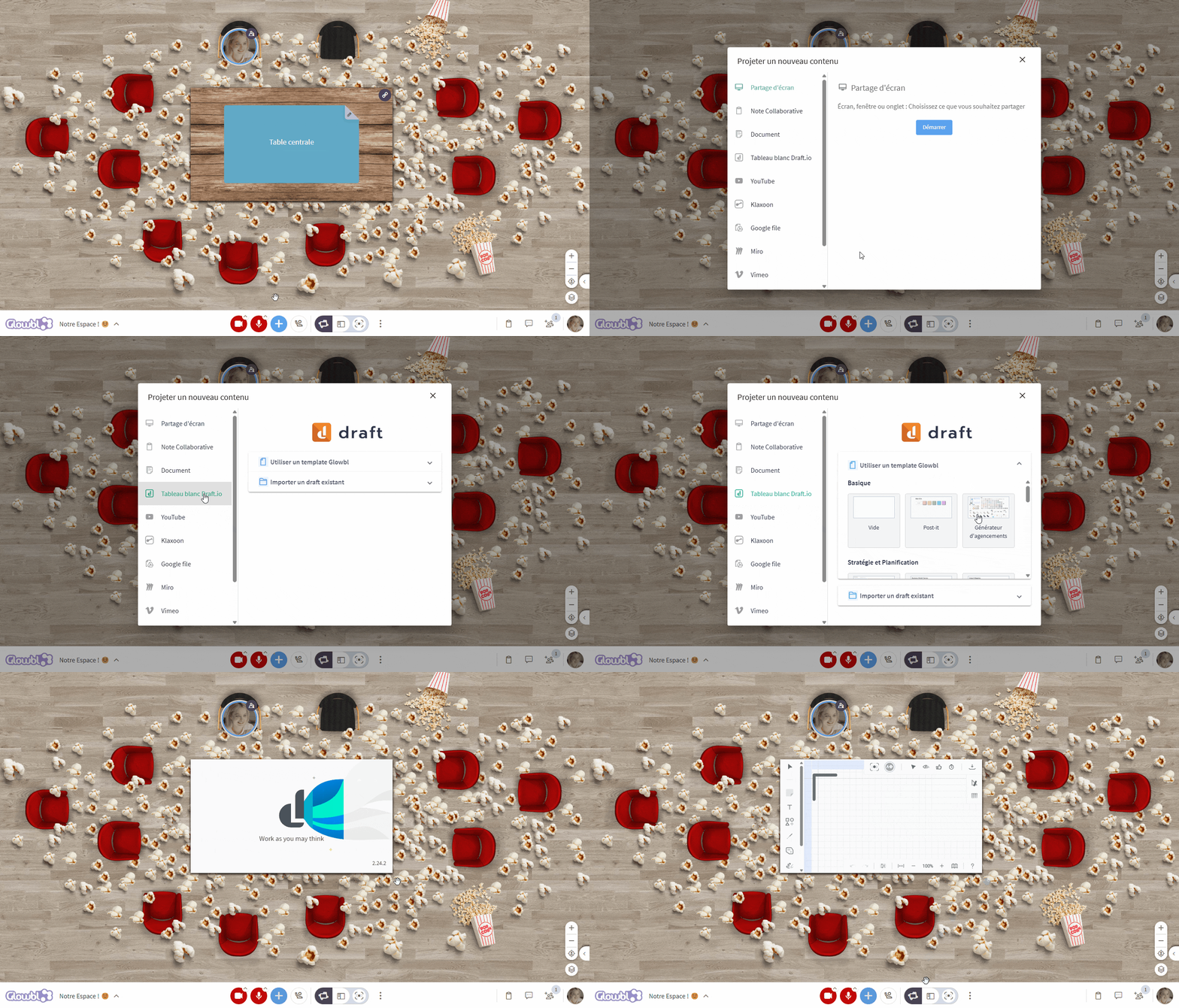

For best visibility, switch to Enlarge Content mode at the bottom of your screen.
⚓ Navigate the generator
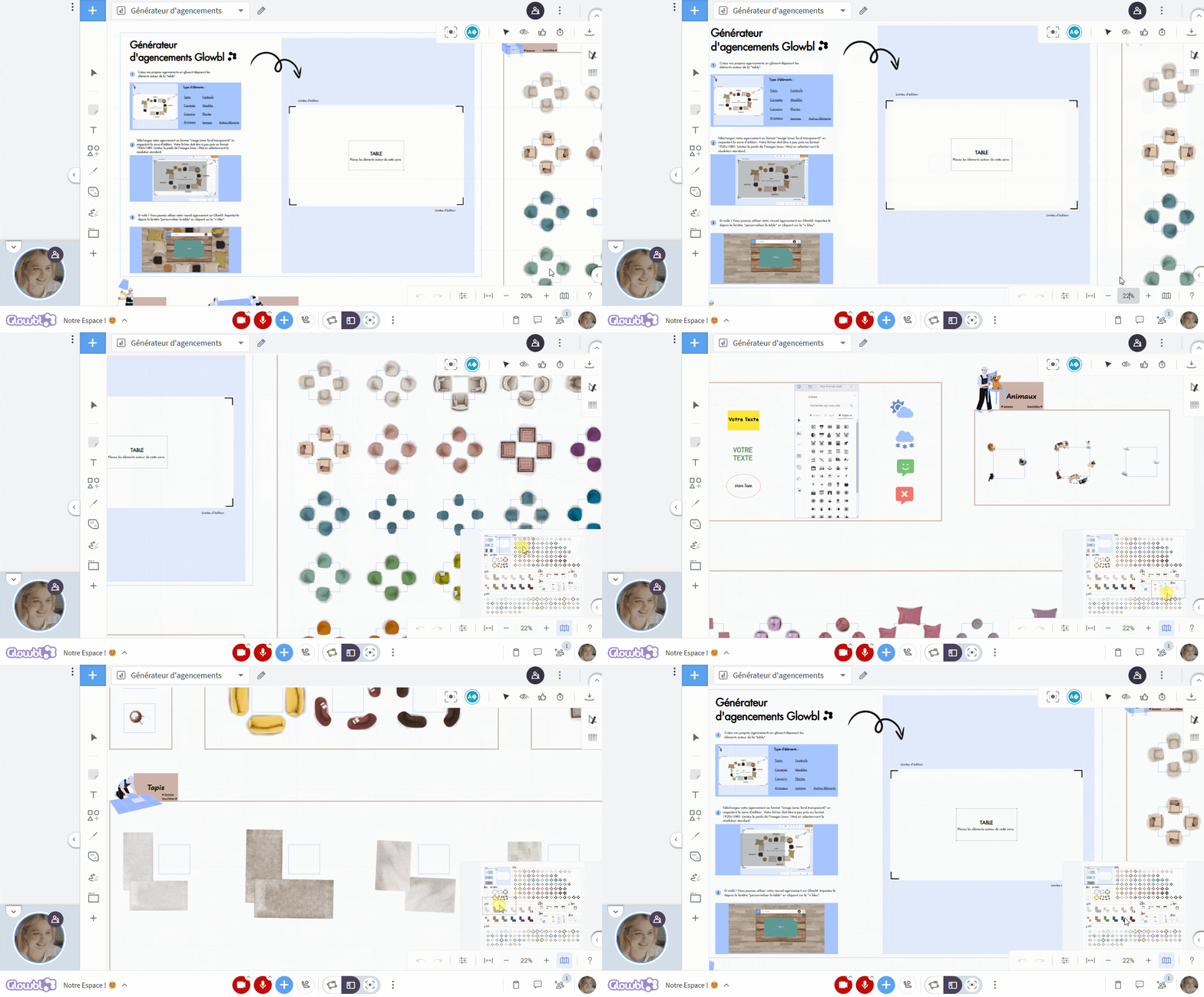
The Layout Generator consists of an editing area and various basic elements arranged in categories (carpets, sofas, armchairs, furniture, plants, animals, as well as tools for adding text or images.) The generator works intuitively as a drag-and-drop activity.
To move around, use the toolbar at bottom right to zoom in, zoom out or activate the minimap 🗺️ to easily navigate the space.
💺 Select and move elements
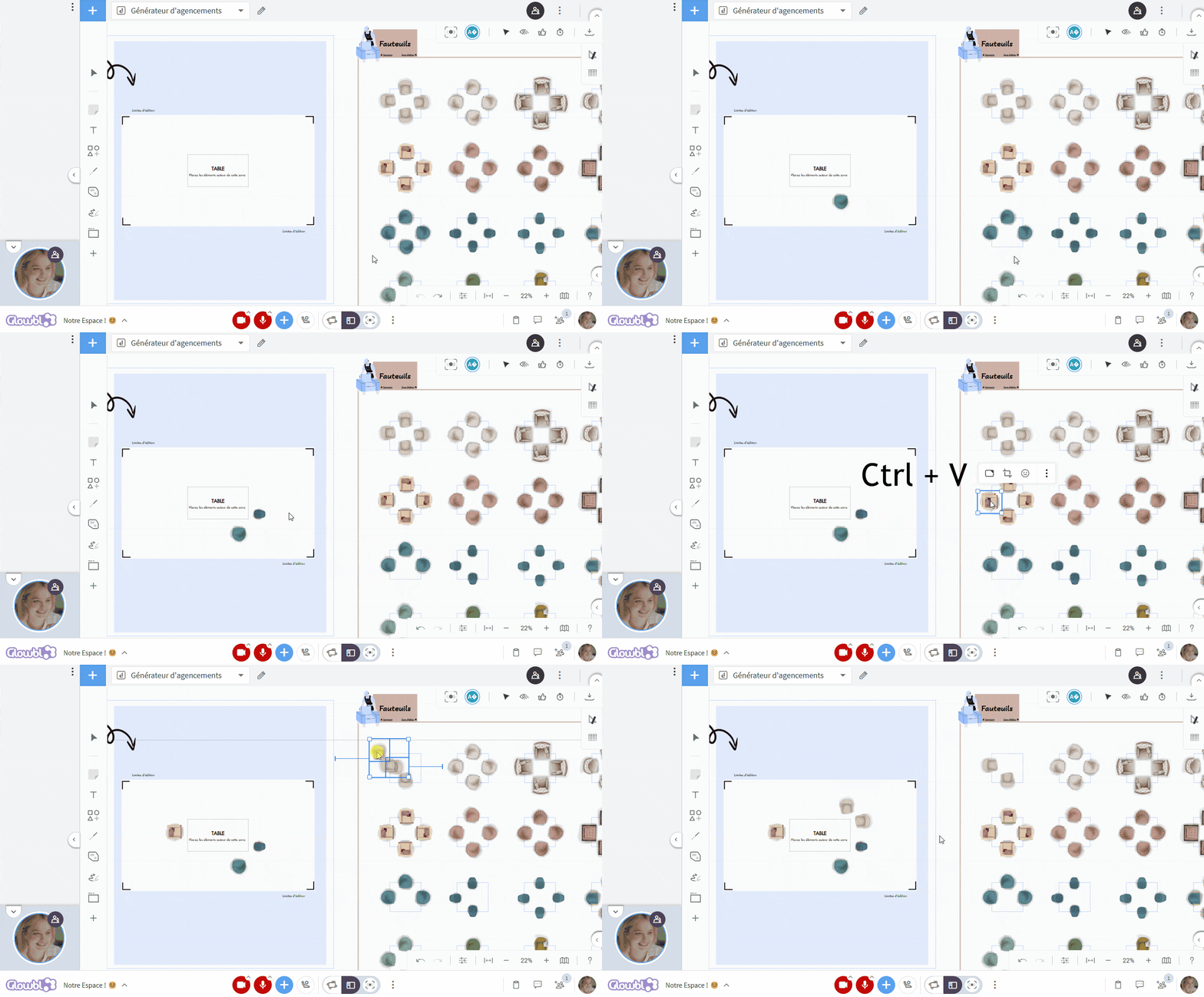
Move elements around the editing area via drag & drop, or use the Copy (Ctrl + C) / Paste (Ctrl + V) shortcuts. If you wish to select several elements at the same time :
- Hold down the Ctrl key, then click on the desired objects.
- You can also make a selection by dragging your mouse while holding down the Ctrl key.
To adjust the superimposition of elements (such as shapes or carpets), use the move forward/backward options (right-click on the selected element and choose "push to background").

⌨️ Add text and images
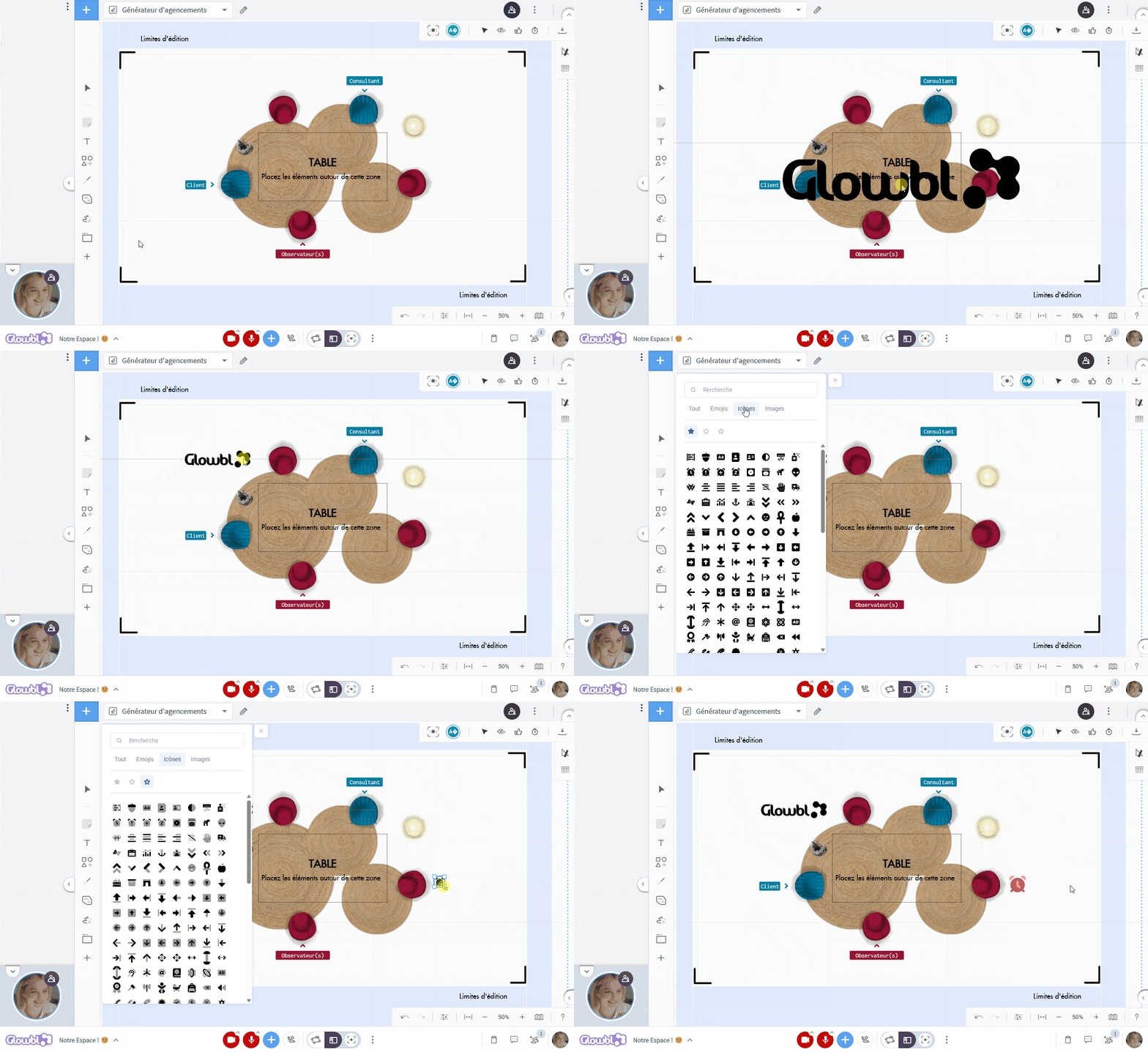
Once the set is in place, you can add annotations to clarify specific roles or areas (facilitator, customer...).
Double-click anywhere in the draft to add a label, or click on the T-Text tool in the left-hand toolbar.
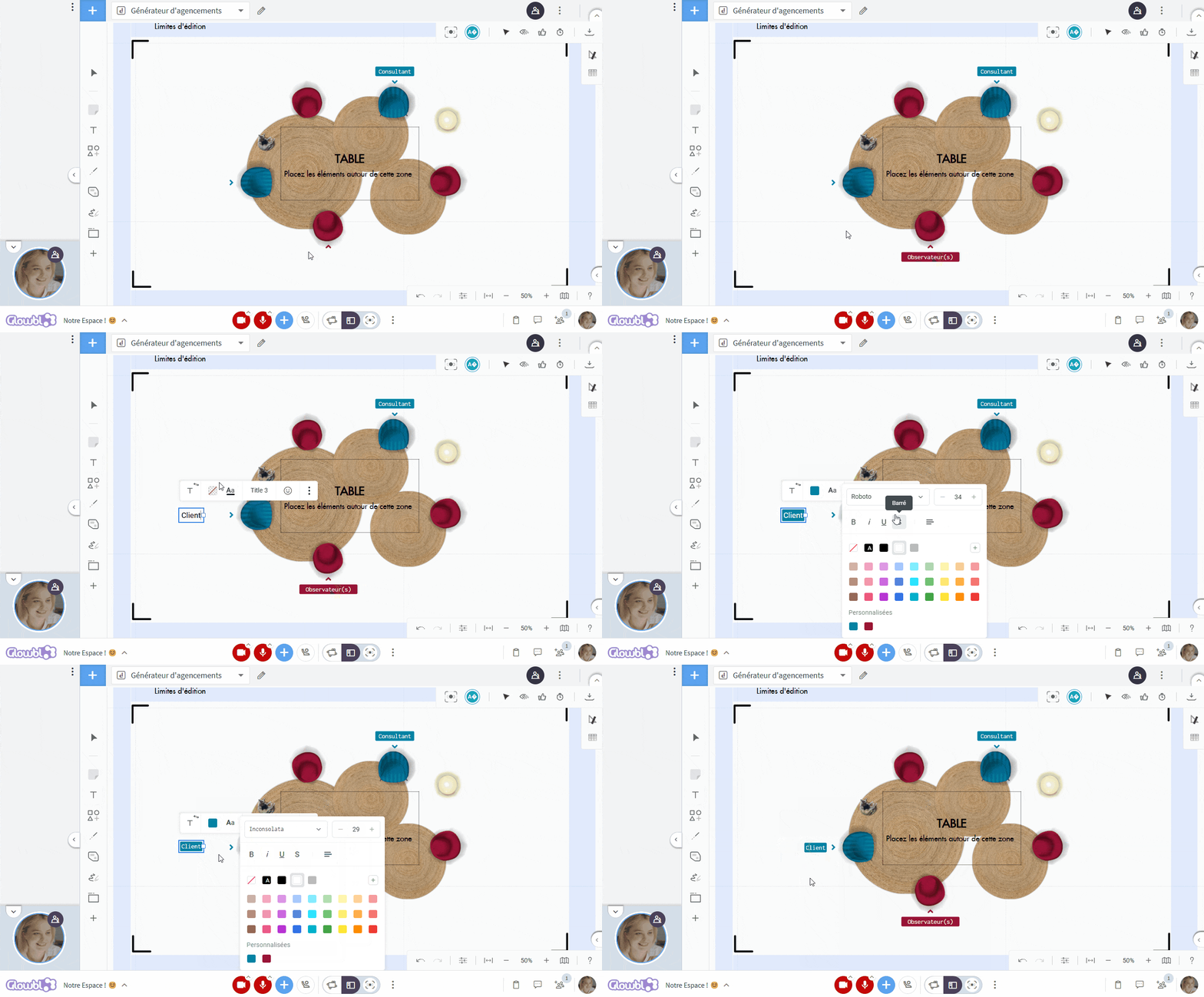
Add arrows or other icons to guide participants. You can access an extensive icon library via the "+" menu in the toolbar, as well as importing your own images such as your logo via the same "+".
Export layout
Once your layout is complete, you need to export it for use on Glowbl.
In the top right-hand corner of the generator, click on the download icon to open the export menu ➜ Choose the "Download as image with transparent background" option . ➜ Adjust the area to be exported, making sure not to include the edges of the editing area (they might appear on your space) ➜ Click on Export in size Standard. The exported image must have a size of 1920x1080 pixels for optimal rendering on Glowbl.
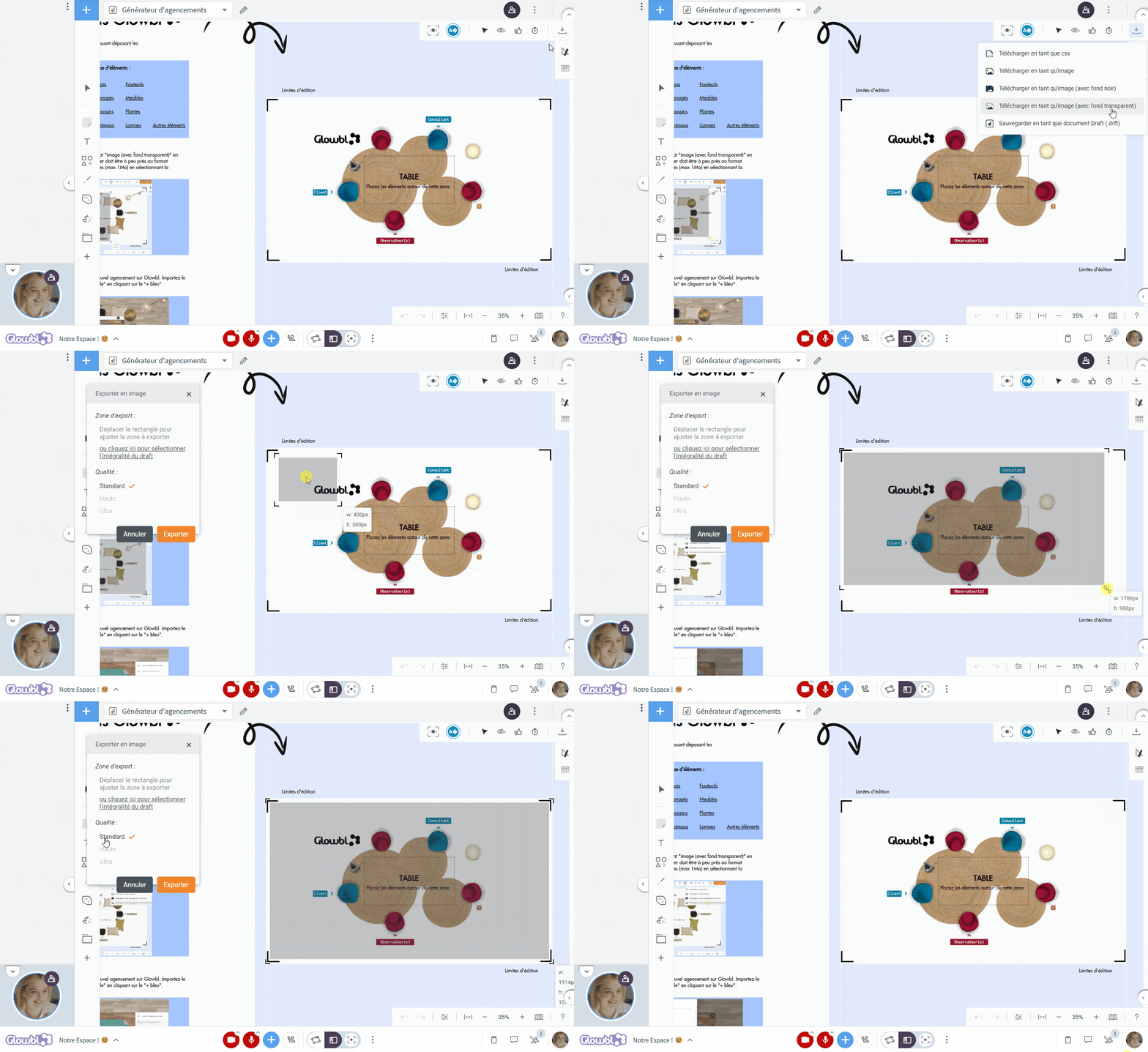
If the image exceeds 1 MB, you can use tools like iLoveIMG to compress the image before importing it.
Import layout into Glowbl
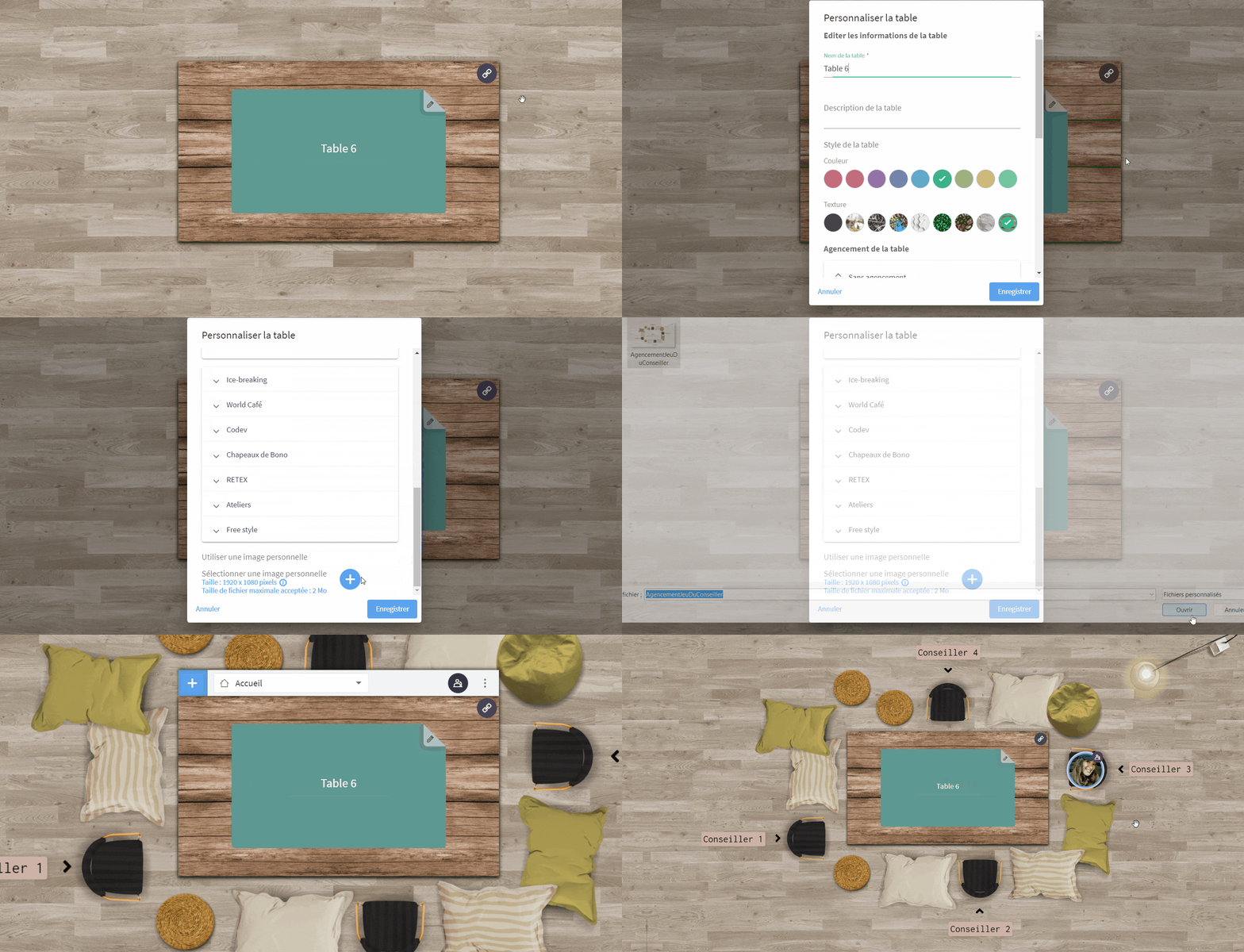
Congratulations, you've exported your first layout! Now all you have to do is admire the rendering on Glowbl.
To import a personal layout, move your mouse over the table ➜ click on the 3 dots ➜ select Customize table ➜ in the menu, scroll down and click on + blue to add a personal image ➜ select your layout from your computer ➜ click Save.

Are you planning to facilitate your session using a Sequence? Arrangements can be added directly from your scroll preparation. What's more, you'll be able to set up different layouts for each stage if you wish!
To find out more, click here:
 Create a sequence
- Take a look at our Layout Gallery to download designs from our Ambassadors and Creators!
- To find out more about layouts, visit the: Change table layout
 Gallery: Layouts