Between the neighbour doing DIY, the participant looking for the microphone button for the fourth time, and the need to discreetly let your co-facilitators know about a last-minute change of plan, running an online session sometimes calls for ninja-like reflexes.
Release 6.1 is to your mental load what a cosy blanket, a cup of tea and your favourite series are to autumn: a little peace of mind.
We’ve brought together noise suppression to keep unwanted sounds at bay, a private chat for those behind-the-scenes conversations, and an AI support assistant to handle technical questions while you focus on what you do best: facilitating.
And that’s not all! We’ve also slipped in a few handy improvements that should have more than a few of you saying, “Ah, finally!”
✨ Get help from Glowbl Assistant (🧪)
🎧 Reduce background noise (🧪)
💬 Chat with your fellow facilitators
🛋️ Build your personal layout library
🎬 Import MP4 videos directly into Glowbl and your Sequence (🌱)
🪟 Automatically open the floating webcam window
🧹 Clear all content from your space in one click
👥 See how many people are connected before joining
🛜 Display 10 webcams by default
🏢 Customise your organisation even further
🗺️ Turn PDFs into interactive maps to navigate your space


🧪 Beta: You can try this feature while it's still in its testing phase. It may evolve as we continue to develop it.
🌱 Early access: This feature is available now, but some aspects may change before its final release.
✨ Get help from Glowbl Assistant (🧪)
Helping a participant change their headset’s audio input and output settings, checking that their browser is up to date… and just like that, 10 precious minutes of your 45-minute session have disappeared.
But now, Glowbl Assistant can take care of those questions for you! Simply click on the ✨ sparkles icon in the bottom-right corner of your screen, ask your question and follow the guidance.
For now, Glowbl Assistant is here to help you solve technical issues or find a particular feature. But we’ve got much bigger plans for it: helping you get to grips with the entire platform, suggesting facilitation ideas and, who knows, even supporting you in creating your own session plans.
But let’s not get ahead of ourselves! We’ll take things one step at a time, learning from your conversations and feedback along the way. So, get those keyboards ready and fire away with your questions!
🎧 Reduce background noise (🧪)
We might be able to add a lovely green lawn to our virtual spaces, but we’d rather not have the sound of a lawnmower accompanying our meetings.
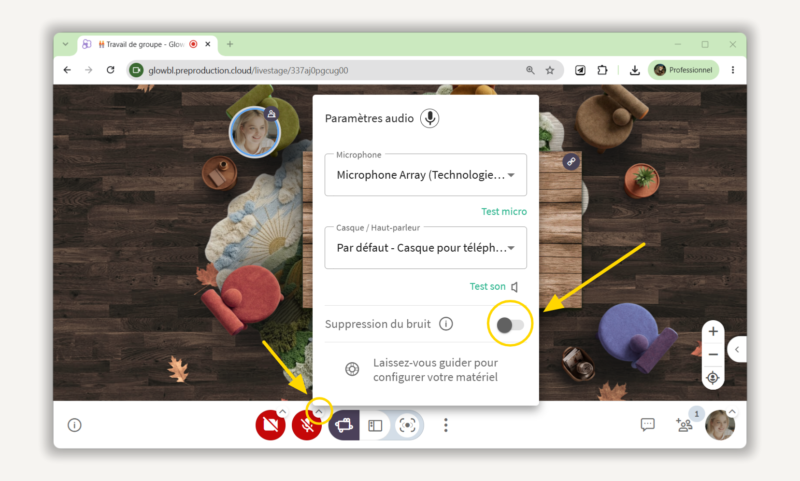
Background noise suppression is now available in your microphone settings.
Click the small chevron “^” next to the microphone button to enable it. Your choice will then be saved in your browser. Simply switch it on whenever your surroundings call for it, particularly if you’re not using a headset or external microphone.
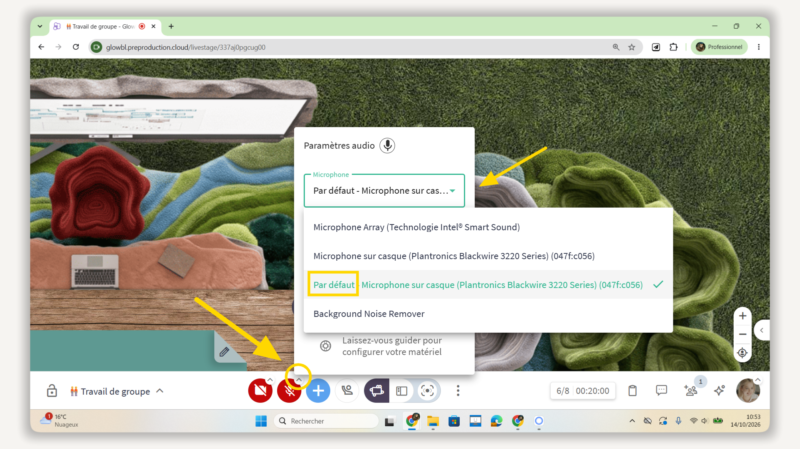
And because every second you don’t spend fiddling with your equipment is a second well spent, we’ve made another improvement. If you unplug and reconnect your headset or microphone, Glowbl now correctly remembers your audio device when you’ve selected the “Default” option.
💬 Chat with your fellow facilitators
Over the past few months, we’ve seen more and more seminars, festivals and forums being hosted on Glowbl, and we couldn’t be happier! Some of these events span several spaces, but almost all involve several facilitators working together.
There’s just one thing you’ve told us: you’ve been using another app, such as WhatsApp or Discord, to coordinate with your fellow facilitators in the same space. 😱
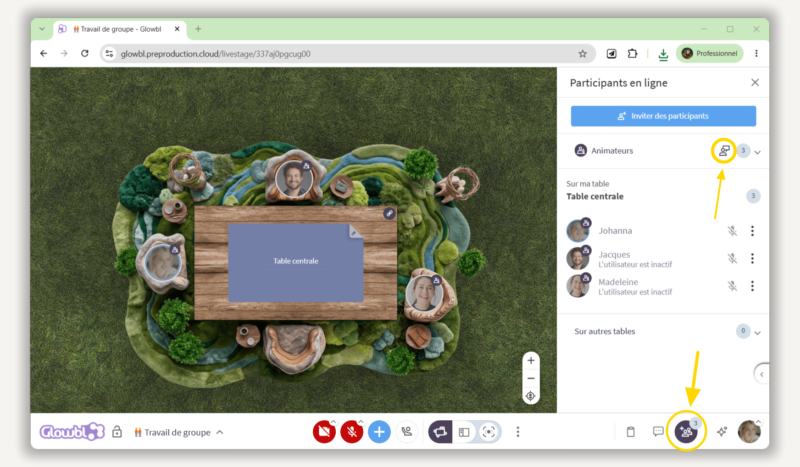
Close those apps right now and keep your attention where it belongs! Alongside the option to send someone a private message, there’s now a dedicated chat channel that brings together all the facilitators in a space, away from participants’ eyes. It’s always available, right where you need it.
⚙️ How to access it:
Open the Participants tab and click the icon showing a person and a speech bubble at the very top, next to the Facilitators list.
🛋️ Build your personal layout library
I think the bestsellers of 2026 have to be our Agree/Disagree and Dans les Choux (1-to-5 positioning scale) layouts. Two firm favourites that let you launch a moving debate or instantly capture where a group stands on a question, a topic or an opinion.
Until now, though, once you’d downloaded them from our Layout Gallery, you had to keep them safely stored on your computer if you wanted to use them again.
That’s why we’re continuing to develop our resource library. After documents and videos (more on those below), it’s time to welcome the layout library!
You can now find the layouts you’ve imported or created, organise them into personal folders and access layouts shared by your organisation.
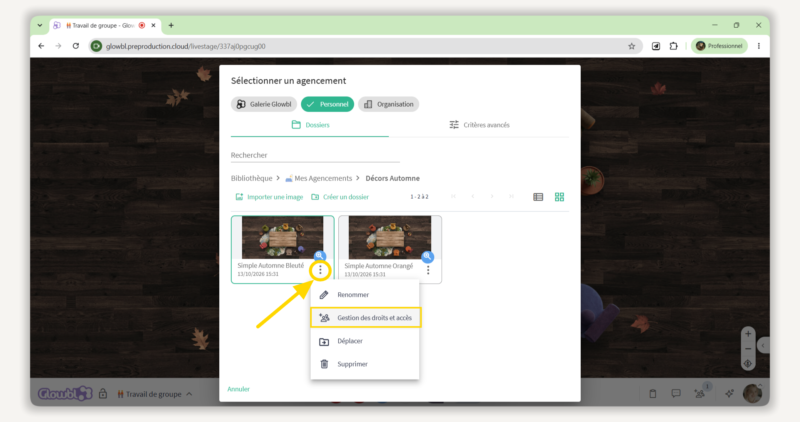
A little shout-out to the Ynov Connect and Burger King teams: you can relax! No more hunting around for that special conference layout, those Halloween decorations or the one with sofas as soft and inviting as burger buns…🍔
And if you’re neither a designer nor an AI expert, don’t forget that you can easily create your own layouts using our Layout Generator!
⚙️ How to access it:
1) Hover over the table of your choice
2) Click the three vertical dots in the top-right corner.
3) Select “Customise table”.
4) Click the green pencil icon and select the “Personal” tab.
5) Click “Import an image“, then organise your layouts into folders.
💡 A few tips for keeping things organised
Our libraries can hold different types of resources within the same folder structure.
There are two ways you can organise them:
– By resource type: one folder for PDF presentations, another for whiteboards, another for layouts, and so on.
– By activity: for example, a “Moving Debate” folder containing the three layouts you need, the whiteboard and the PDF instructions.
Personally, I like a bit of both!
🎬 Import MP4 videos directly into Glowbl and your Sequence (🌱)
Until now, you could already play videos in Glowbl using a YouTube or Vimeo link, or a link from an internal server. But what if the video is sitting on your computer?
You can now upload it directly as an MP4 file, up to 250 MB per video. Your imported videos work just like any other video in Glowbl: playback is synchronised for all participants, while everyone retains control over their own volume.
We recommend using “Speach Only” permissions if you don’t want participants to pause the video themselves.
MP4 videos can now also be added to your Glowbl Sequence, your personal library and your organisation’s library. And, of course, you can play them in any of your spaces.
⚙️ How to access it:
1) Click the round blue “+” button (Project new content) at the bottom of your screen.
2) Select “Video Player” from the list of available content.
3) Click “Import file“
🪟 Automatically open the floating webcam window
You’re sharing your screen. You switch tabs. And suddenly… you can’t see your participants anymore. Sound familiar? Until now, you could already pop out the participant bubbles panel when using the “Enlarge content” display mode. But you had to remember to do it!
To save you that extra bit of mental juggling, we’ve made the floating webcam window open automatically. And because we all have our own way of facilitating, you can choose between four options in your preferences:
– In both situations (screen sharing or switching tabs).
– Never open automatically.
– Only when I’m sharing my screen.
– Only when I switch tabs.
⚙️*How to access your preferences:
1) Click your profile picture in the bottom-right corner of your screen.
2) Open “Profile & Preferences”, then select “Preferences”.
3) Choose when you want webcams to open in a separate window.
🧹 Clear all content from your space in one click
It might not be the most spectacular feature in this release, but we absolutely love it. Why? Because it’s going to save us quite a few clicks!
Some of you use the same space for all your classes. Others share a space with several trainers because it belongs to an entire cohort. Whatever your setup, if you’re not using Glowbl’s Sequence feature, there’s always that inevitable moment when you have to clear everything away.
Head to the “Space Content” folder, accessible from the table’s drop-down menu. You’ll now find a new checkbox that lets you select ALL the content shared in your space and either delete it or open it in one go.
A little less housekeeping, a little more time for everything else!
👥 See how many people are connected before joining
About to join a space and wondering whether your participants have already arrived? Need to prepare your next session but aren’t sure whether the previous trainer has finished?
No need to open the door to find out!
⚙️On your dashboard, you’ll now see a small icon showing two people next to each space. Simply hover over it to find out how many people are currently connected.
🛜 Display 10 webcams by default
What’s the biggest challenge with online sessions? Don’t all shout at once… 👂 Blank screens, of course!
On Glowbl, the small, unobtrusive participant bubbles already help reduce the pressure people can feel about being on camera. And profile pictures help maintain a more human connection with those who genuinely feel uncomfortable switching their webcams on.
But we’ve noticed something else.
Until now, only five webcams were displayed by default. So, in a group of ten, you might see five participants moving around on camera… while the other five appeared frozen behind their profile pictures.
And that’s where group dynamics come into play. If half the group seems to have their cameras switched off, why should I bother turning mine on?
That’s why we’re increasing the default to 10 visible webcams!
Some organisations already had access to settings allowing up to 20 cameras. The new standard is now 10.
Of course, you remain in control of this individual setting and can adjust it whenever you like, particularly depending on the quality of your internet connection.
⚙️ How to change it:
1) Click the three vertical dots in the centre of the white toolbar at the bottom of your screen.
2) Select “Set the number of webcams displayed“.
3) Increase or decrease the number of webcams to suit your needs.
The aim isn’t to force everyone to switch their cameras on. It’s simply to give better visibility to those who choose to do so.
🏢 Customise your organisation even further
Our recent collaborations with Capgemini, Acadomia and Femmes Ingénieures have helped shape some of our latest developments around organisation customisation.
After all, a school, a company and a network running events for thousands of people rarely have exactly the same needs!
Roles tailored to your teams
You can now create specific roles for different team members. For example, some may have permission to create spaces or publish resources in the organisation’s library, while others may be allowed to facilitate sessions in any space created within the organisation. You can assign these roles yourself. And to make things clearer, we’ve added descriptions of the permissions associated with each role to your “Organisation Management” dashboard.
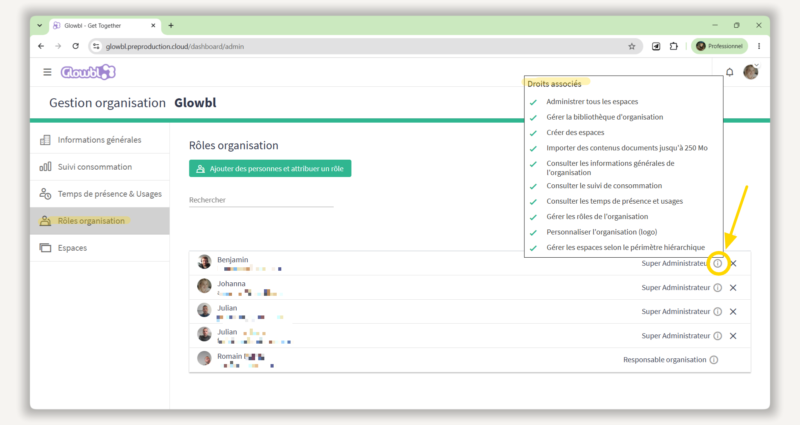
Customised waiting rooms
You can also customise your waiting rooms, for example by displaying a contact person or a message tailored to the situation. Something along the lines of: “This space is now closed because you’ve arrived late. Please click this link to book another appointment.”
Keep places reserved for your failitators
Organising a major event? Want to make sure your five facilitators can still join the space, even when it’s full with 300 people connected? You can now adjust the number of places reserved for facilitators. By default, two places are reserved on Organisation licences, and one place on Individual and Discovery licences.
And that’s just the tip of the iceberg when it comes to customisation. If you’d like to explore the possibilities, book a meeting with your account manager!
🗺️ Turn PDFs into interactive maps to navigate your space
To finish, here’s a little feature that might sound rather mysterious at first, but opens up some very entertaining possibilities.
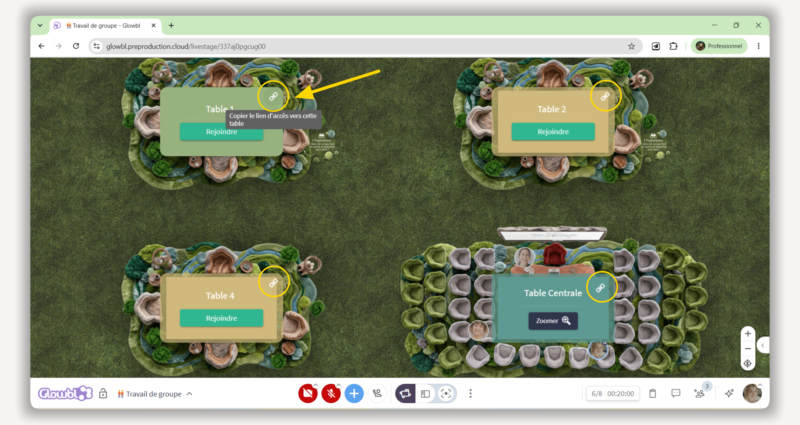
Every table in a Glowbl space has its own unique link. You can copy it by hovering over the table and clicking the link icon.
Until now, that link was mainly used to give someone direct access to a table. But you can now embed it in a PDF to create a fully interactive map of your space!
Imagine a campus map, a treasure hunt, a board game or an event floor plan with different stands. You share the PDF in Glowbl and, when a participant clicks on one of the objects, they’re automatically taken to the corresponding table, without having to reload their browser tab.
And here’s where things get even more interesting. You can combine several types of links within the same presentation. Glowbl handles them differently depending on their destination:
– A link to a website: the website opens in another browser tab.
– A link to another slide in the document: all participants move to the new slide together, with the option to enable independent navigation so everyone can explore at their own pace.
– A link to another Glowbl table: the participant moves directly to that table while remaining in the same space.
In other words, a simple PDF can become a genuine navigation tool!
And with Halloween just around the corner, I think we’ve found the perfect excuse to turn Glowbl into a haunted mansion. 👻🎃 We can’t wait to see your escape rooms!
⚙️How to create an interactive map :
1) Open your usual presentation software and create a visual representation of your Glowbl space. A few rectangles will do to get started… or go all out and design a proper treasure map if you’re feeling inspired!
2) Select a shape or image representing a location, then use the hyperlink tool. Instead of pasting a website URL, paste the link to the corresponding Glowbl table.
3) Export your document as a PDF
4) Import it into Glowbl using the round blue “+” button, then select “Document & Whiteboard” and “Import file“.
5) Share your document and click on one of the objects: just like that, you’ve been transported to another table!
And since autumn is also the season for getting together and keeping cosy, I hope these new features will inspire you to organise even more workshops and shared experiences.
As for us, we’re particularly excited to discover your first interactive maps, your new layouts and, of course, your feedback on Glowbl Assistant!
Wishing you all a wonderful autumn! 🍂
I’m Aude-Marine Bertin, and as a Digital Learning Manager, I’m here to help you get the most out of Glowbl through twice-weekly workshops and rehearsal sessions ahead of your own events. With a background in video editing and festival coordination, I can’t wait to help you bring inspiring and creative events, workshops and training sessions to life!. LinkedIn
